
Recently I have been building a number of WordPress websites for clients and for personal projects.
I’ve found that often we want to display a list of items. These might be lists on sponsors of your local basketball club, or photos of your staff or even products you may have (but you don’t need to go for the full online shop).
The options in the WordPress plugin directory were slim at best. They were generally bloated and wanted me to pay some money for full functionality.
So I developed Primo List – a free (as in beer) WordPress plugin to display lists and grids of items on your website.
To use it you install the plugin, define your items and the categories they belong to, then use shortcodes to display your list or grid on your page.
Items can belong to more than one category enabling the same item to appear multiple times.
We use this for gold, silver and bronze sponsors for our basketball club.
Lets check it out:
Install
Go to plugin in your WordPress website, select Add Plugin and then search for Primo List. You should get a panel like this:
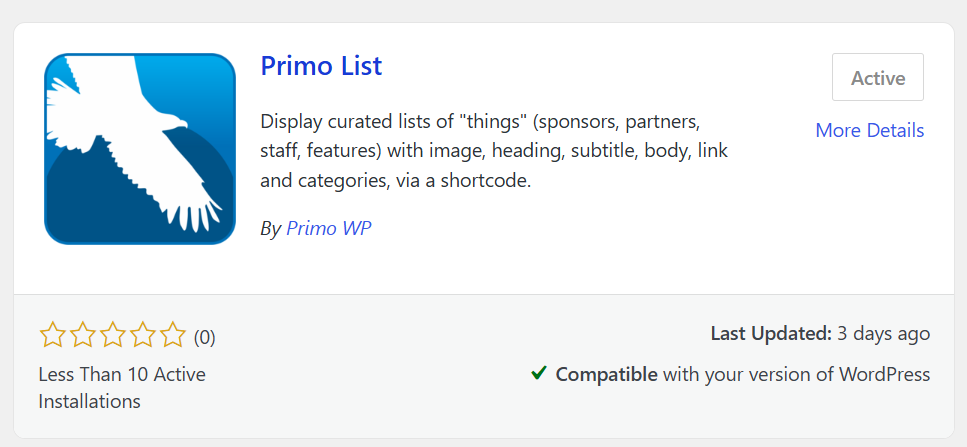
Now I’ve only just launched the plugin so numbers are low – but this will change soon, Odin willing.
Install and Activate and a Primo List menu item will appear in your Dashboard menu.
Adding Items
So you can have multiple lists on your site, you just give them different categories. So on the one site you could have your products (in their own product categories) and maybe your staff photos (in THEIR own categories).
I’ve tried to code Primo List to be as flexible as possible.
Once you have installed Primo List – go to your Dashboard menu and Add some items.
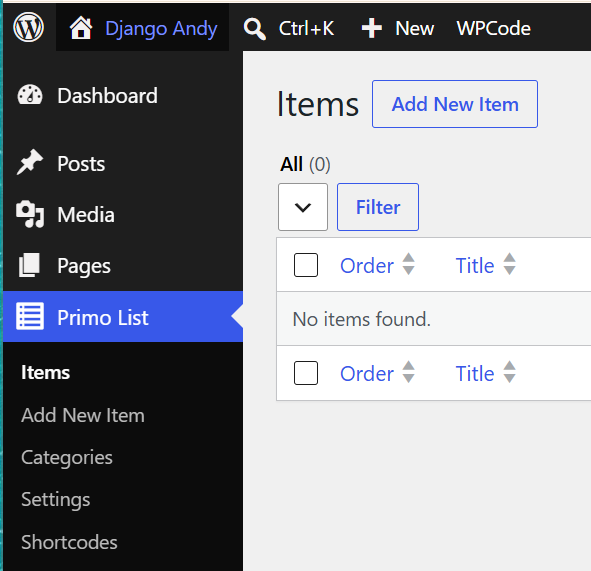
Adding an item brings up your normal editor – ensure you click Meta boxes in the bottom left.
Adding an item brings up your normal editor – ensure you click Meta boxes in the bottom left.
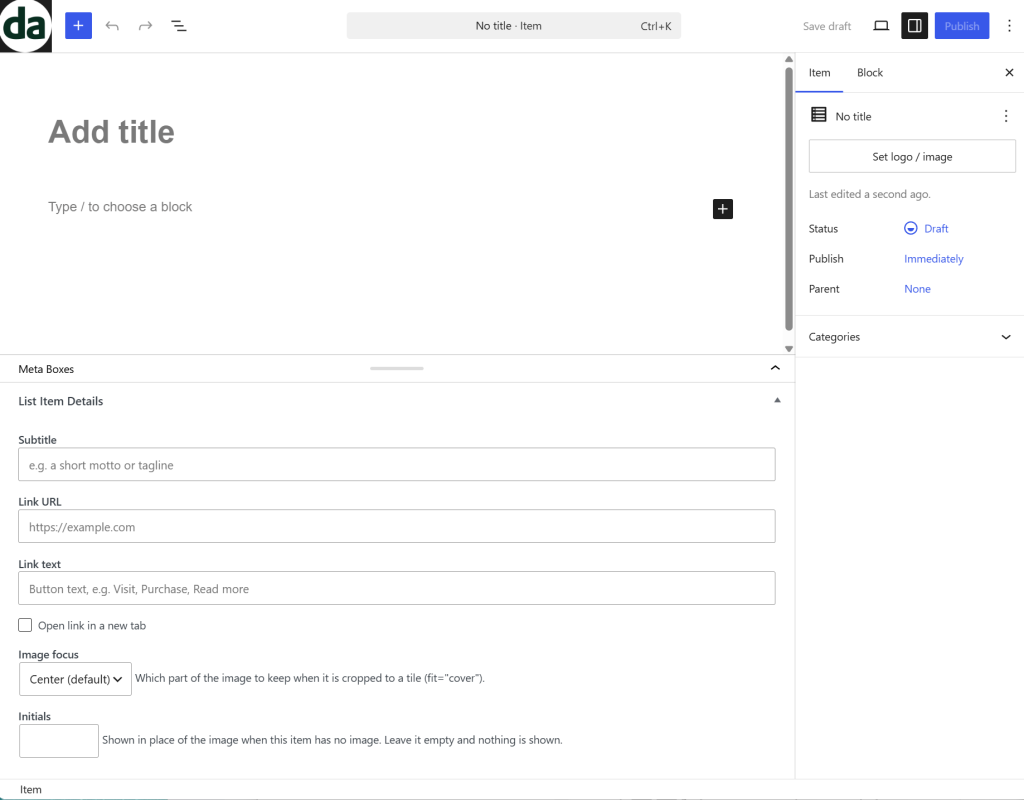
You should then have a page like this:
For this example I’m going to upload several versions of the Primo Logo and imagine these are sponsors.
I start by uploading the purple logo and giving it some text:
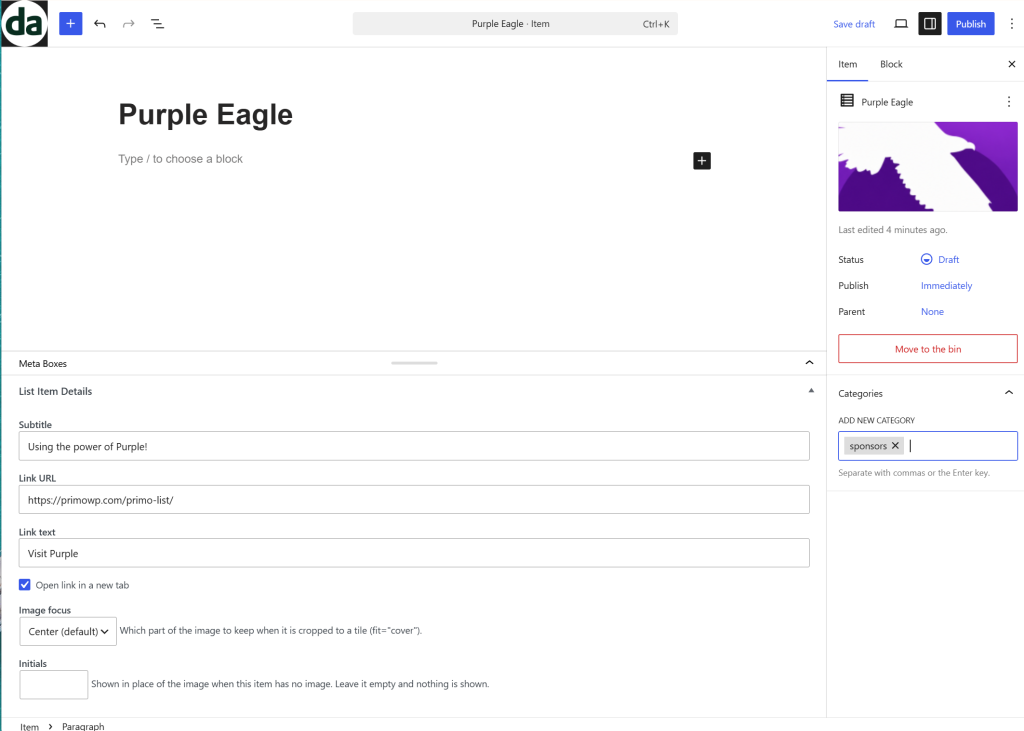
Note that I have the image and categories on the right hand side.
The information in the Meta Boxes is all optional. If there is no info there then nothing will display.
This is great as some items needs links to webpages for example, and other items don’t.
The image focus is a cool addition. Not all images display nicely so you need to set the focus. This true for portrait shots (where you want align top) or products where the focus would change.
The image focus also helps when you have logos of different proportions.
Once you have finished entering in your item details, Publish it and you will go back to Primo List:
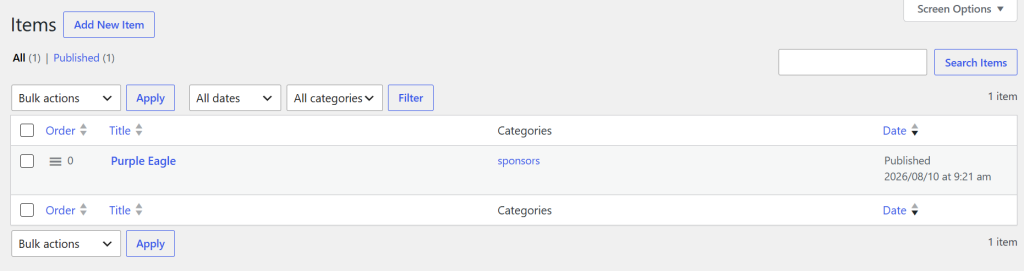
Once you add more items you will get something like this. You can drag to reorder.
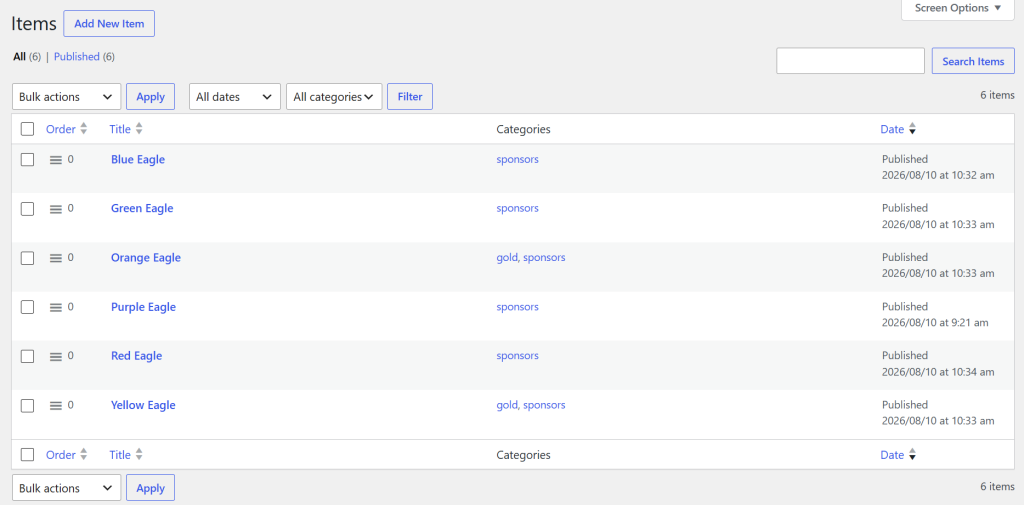
You’ll notice even item is in the Sponsors category with a couple listed as Gold level sponsors.
Displaying Lists
To display a list you need a shortcode. Go to the Shortcodes menu item under Primo List.
You’ll see something like this:
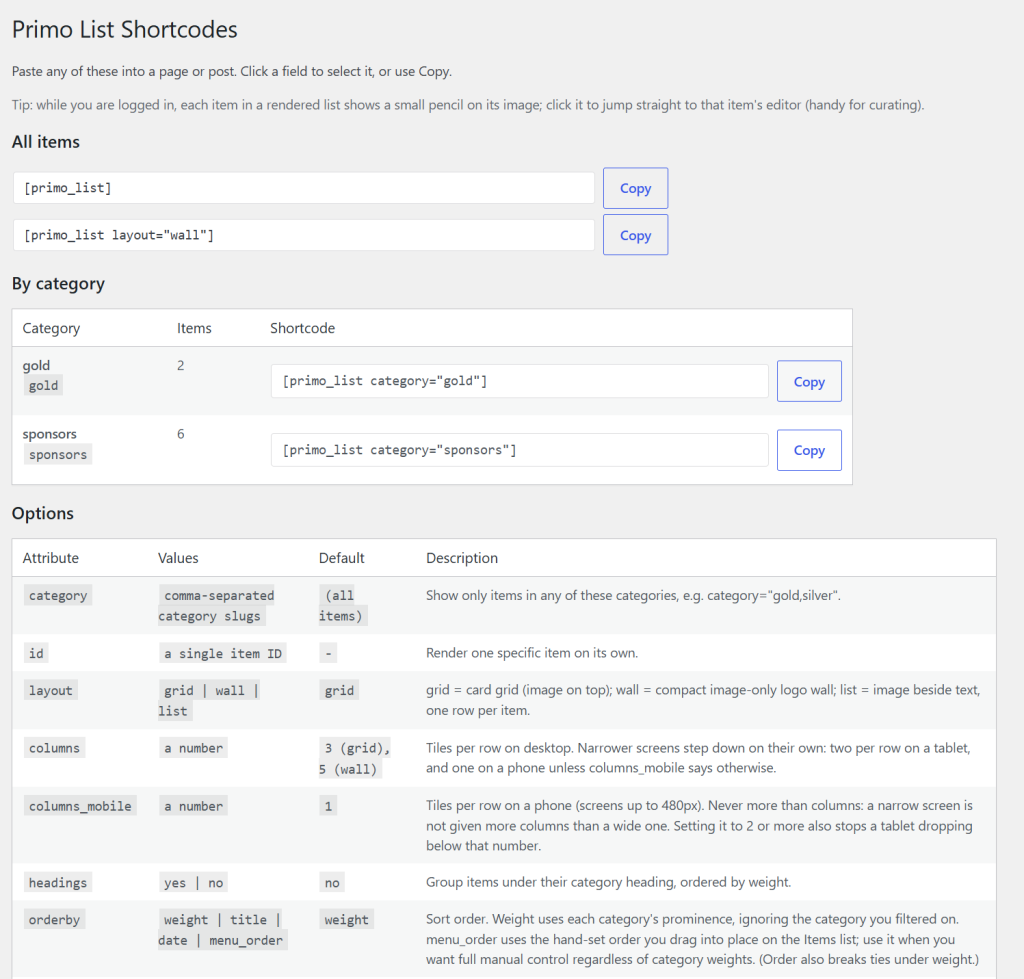
Ok – let’s just show the sponsors in a straight list:
[primo_list category="sponsors"]





Wow! that’s looks great straight out of the box!
Lets try that in just a list with a limit of 3
[primo_list category="sponsors" layout="list" limit="3"]Let’s go back to the grid – but show 4 across on desktop and 2 across on mobile:
[primo_list category="sponsors" columns="4" columns_mobile="2]And finally – lets just see the gold sponsors:
[primo_list category="gold"]Conclusion
Well I hope that give you a good run down of the plugin.
Some links for you: