
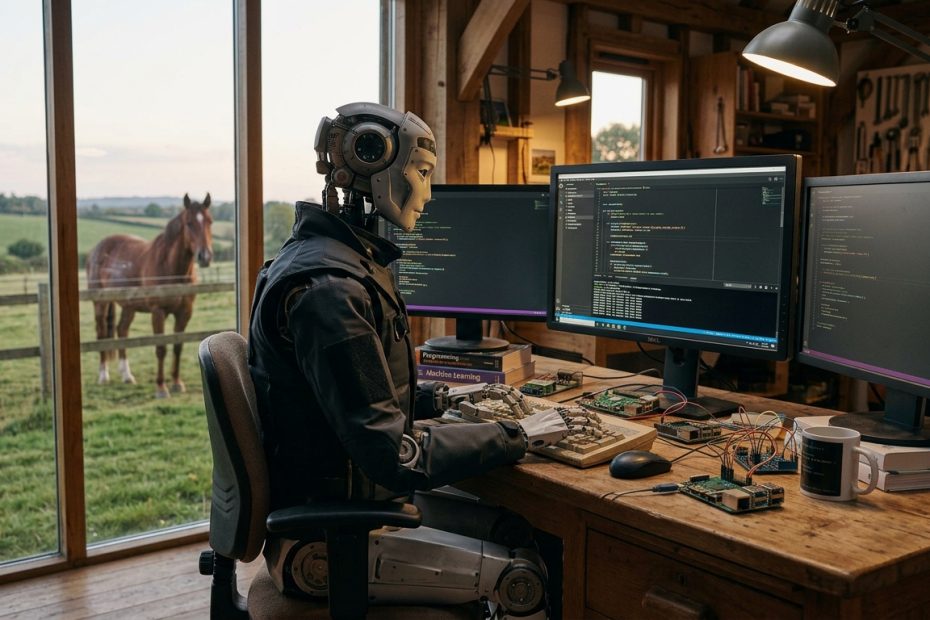
A few people have asked how I’m coding with AI at the moment, so here’s a quick rundown of my setup, with links to everything in case you want to copy it.
The short version is that I run Windows on the outside because I like to play games after work, and Linux on the inside because Claude Code is much happier there. Everything I work on lives in one projects folder.
Step 1: WSL 2 (Linux inside Windows)
WSL 2 lets you run a proper Linux kernel inside Windows, so there’s no dual booting and your Steam library stays right where it is.
You’ll need Windows 10 (version 2004 or later) or Windows 11, then:
- Open PowerShell as administrator (right-click and choose Run as administrator).
- Run
wsl --install - Restart your PC.
- Open Ubuntu from the Start menu and set up a Linux username and password.
Ubuntu is the default, but if you’d rather use something else you can run wsl --list --online to see what’s available and then install it with something like wsl --install -d Debian.
Step 2: One projects folder for everything
Inside Linux I created a single ~/projects folder, and every project I’m working on lives in there, whether it’s work, client sites, side projects or games.
mkdir ~/projects
cd ~/projects
One tip: keep it in your Linux home folder rather than somewhere under /mnt/c/. Reading files across the Windows and Linux boundary is noticeably slower, and Claude Code reads a lot of files.
If you want to browse your files from Windows, type \\wsl$ into the File Explorer address bar.
Step 3: Claude Code
Claude Code is Anthropic’s AI coding agent. It runs in your terminal, reads your codebase and does the heavy lifting while you keep an eye on it (and maybe finish your coffee).
Install it from your WSL terminal rather than PowerShell:
curl -fsSL https://claude.ai/install.sh | bashOpen a new terminal and run claude --version to check it worked, then head into a project and start it up:
cd ~/projects/my-django-app
claude
The first time you run it, it opens a browser so you can log in. You’ll need a paid Claude plan (Pro, Max, Team or Enterprise) or an API account, and it keeps itself up to date in the background, which is one less thing to think about.
Step 4: The Superpowers plugin
Superpowers by Jesse Vincent gives Claude Code a proper development process, so it brainstorms, plans, writes tests first and then reviews its own work. It’s a lot less cowboy coding and a lot more measure twice, cut once.
To install it, run this inside a Claude Code session:
/plugin install superpowers@claude-plugins-officialOnce it’s in, asking for a new feature means Claude will ask a few sensible questions and write up a plan before it goes anywhere near your models.
A few other things that make it work nicely
- VS Code with the WSL extension: type
code .from any folder in your WSL terminal and VS Code opens it as if it were running in Linux, which is handy for reviewing what Claude has changed. - Windows Terminal: it comes with Windows 11 and gives you tabs, so I keep one for Claude Code, one for
runserverand one for git. - A CLAUDE.md file in each project: run
/initin Claude Code and it writes one for you. I add my own house rules in there (UUID primary keys, function based views, Bootstrap 5) so I don’t have to repeat myself every session. - Git, and commit often: Claude is good, but having a clean commit to roll back to is still the best safety net there is.
Coding when I’m away from my desk
With children’s sport, farm chores and HorseRecords, I’m not always at my desk, and that’s where Remote Control earns its keep. It lets me keep talking to a Claude Code session running on my own PC from my phone, so the work keeps moving while I’m sitting in the car park.
If I’m already in a session, I just type this and it connects:
/remote-controlIf I know I’m about to head out, I start Claude with it switched on from the beginning:
claude --remote-control "HorseRecords"Run /remote-control again and it shows a QR code, which you scan to open the session in the Claude app on your phone (or find it at claude.ai/code). From there I can answer its questions, approve changes or give it the next job, and it all stays in sync with the terminal back home.
The main thing to remember is that everything still runs on your own machine, so the PC needs to stay on and Claude Code needs to stay open. It works on the Pro, Max, Team and Enterprise plans, and if you want it on all the time you can turn it on for every session under /config.
That’s the lot
That’s my setup as it stands today, though given how fast this space moves it’ll probably look different by Christmas. If you’re running something similar, or you’ve found a plugin I should try, I’d love to hear about it.